
If you’re looking to save or export your scanned images in SilverFast, here’s a simplified breakdown:
1. Understanding Scans: #
SilverFast has two types of scans that serve different purposes in the image processing workflow.
- The Prescan is a preliminary scan that provides users with a preview of their image before committing to a final scan. This feature allows for adjustments such as cropping, color correction, and exposure modifications, ensuring that the final image meets the desired quality standards. By using the Prescan, users can fine-tune their settings and make necessary corrections without having to rescan multiple times, saving both time and effort.
- The Final Scan, on the other hand, is the definitive scan that captures the image with all the adjustments applied during the Prescan phase. Once the user is satisfied with the preview and settings, the Final Scan is executed, producing a high-resolution image that is automatically saved. This ensures that all modifications, including sharpening, dust removal, and color enhancements, are incorporated into the final output. The Final Scan is designed to deliver the best possible quality, making it suitable for archiving, printing, or digital restoration projects.
2. There’s No Separate ‘Save’ Button: #
Once you perform a final scan, your image is instantly saved to a specified location on your computer. You don’t need to search for an additional ‘Save’ button.
3. Setting and Verifying the Save Location: #
Manual Mode (Red Globe):
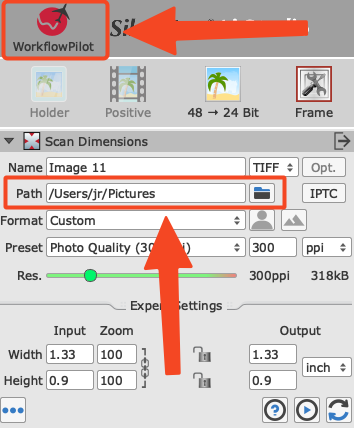
- Open the “Scan Dimensions ” Dialog
- Look for the ‘Name’ or ‘Filename’ field
- Click on the white input field to enter your desired filename before performing the final scan
- Set the destination for your saved images by clicking on the folder icon next to the input field for the path
- The path is displayed in the dialog window
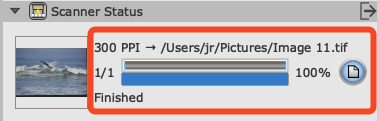
- After scanning, a fully blue progress bar in the Scanner Status widget is indicating completion
WorkflowPilot Mode (Blue Globe)
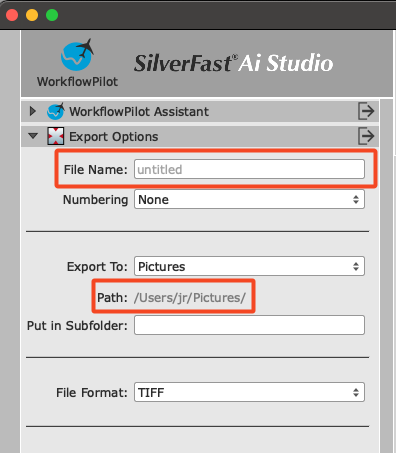
- The save location is determined in the ‘Export’ step under Path
- Look for the ‘Name’ or ‘Filename’ field
- Enter your desired filename before performing the final scan
4. Confirming Your Saved Files: #
After performing the Final Scan, you can verify your saved file by:
- Clicking the folder icon next to the save path (if available)
- Opening the specified save location manually in Finder (Mac) or File Explorer (Windows)
- The file name will match your scan settings
5. Exception – PDF Maker: #
In the PDF Maker tool, pressing “scan” only adds the page to a preview. To save your PDF, use the dedicated “save” button found within the PDF Maker.
Troubleshooting Tips:
- If you can’t find your file, double-check the save location path
- Ensure you have write permissions for the specified folder
- Verify that you performed a final scan (not just a prescan)
- Check if any file name filters or automatic naming conventions are active


