Understanding Scanner Dynamic Range: From Dark to Light #
Scanners see a much wider range of brightness than present in a slide/negative/etc.
The darkest value it sees is if no light at all hits the sensor. The brightest value it sees is if all the light from the lamp hits the sensor.
But even the darkest parts of a film will never block all the light. And the brightest part of the film will always absorb some light. This means your device will always see these values as a shade of gray.
Automatic Image Adjustment: SilverFast’s Smart Correction Tools #
The image auto adjustment allows you to quickly adjust this. So black will appear as black and white as white. Additionally it will automatically adjust the gradation, mid-gray value and optionally remove a color-cast.
SilverFast is able to adjust to a wide area of different type of scenes. You can switch to the various adjustment types by clicking and holding the image automatic button.
(The default selection is “Auto”)
Selecting a different auto adjustment will set it as the new default. The icon will reflect this.
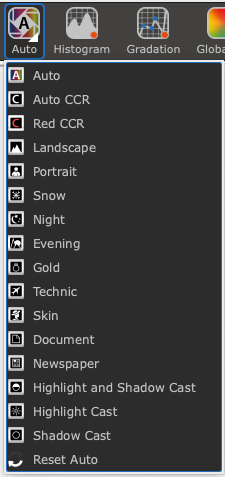
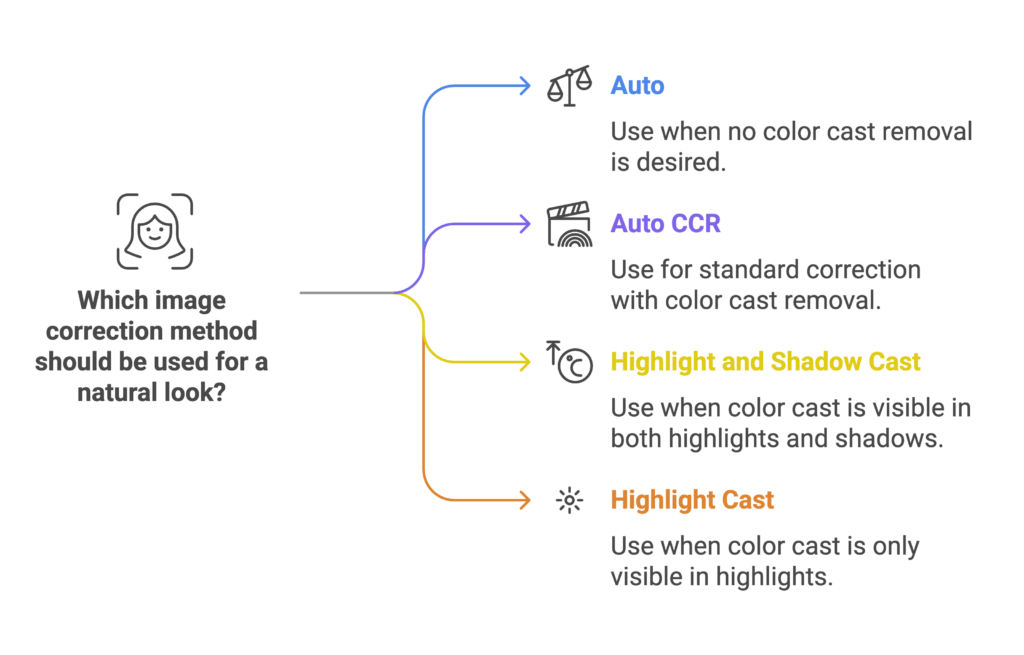
Auto #
Is being used as the standard correction for images if no color cast removal is desired.
Auto CCR #
The default standard correction for images including the color cast removal (CCR).
Highlight and Shadow Cast #
Correction type for images where a color cast is only visible in the highlights and shadows.
Highlight Cast #
Correction type for images where a color cast is only visible in the highlights.
Shadow Cast #
Correction type for images where a color cast is only visible in the shadows.
Other types #
The other types describe for which kind of special scene thy are meant.
Reset Automatic #
Will reset all changes to the Histogram and Gradation.