
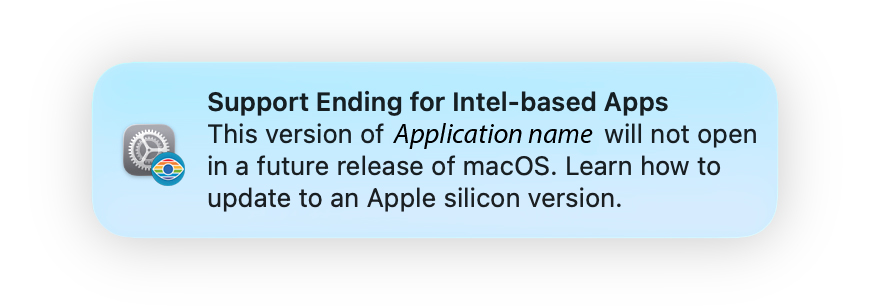
When installing or launching SilverFast 9 on a Mac with Apple silicon (M1/M2/M3/M4), macOS may display a system notification stating that support for Intel-based apps is ending in a future macOS version:
Quick Summary: Does SilverFast 9 keep working? #
Yes, absolutely. There is no immediate action required on your part, and your scanning workflow is not affected.
- macOS Timeline: According to Apple, Rosetta 2 translation remains fully supported throughout the current macOS releases and the upcoming macOS 27. Support for regular Intel-based apps is scheduled to end with macOS 28.
- SilverFast 9 is already a Universal App: It contains native Apple silicon (ARM) code and runs natively whenever compatible scanner drivers are available.
Why is macOS showing this notification? #
Apple displays this notification whenever an app, an installer, or a bundled component relies on Rosetta 2:
- SilverFast 9 Installer: The current setup installer uses Intel architecture, which triggers the notification during installation. SilverFast is preparing updated installers that run independently of Rosetta 2.
- Scanner Drivers: SilverFast 9 dynamically adapts to your hardware. If your scanner’s manufacturer only provides legacy Intel drivers, SilverFast runs via Rosetta 2 to maintain communication with your scanner. If native ARM drivers are available, SilverFast runs natively.
Installer Roadmap & Future Compatibility #
Because Apple maintains full Rosetta 2 support through macOS 27, the current installer remains fully functional on both current and upcoming systems.
To ensure a completely seamless transition well before Rosetta 2 support ends in macOS 28, LaserSoft Imaging is already developing a fully native Apple silicon installer. This updated installer will be made available in ample time. You can track all software updates in the SilverFast 9 Version History.
How to verify SilverFast 9 is a Universal App #
You can verify the architecture of SilverFast 9 directly in macOS at any time:
- Open Finder and navigate to your Applications folder.
- Click on SilverFast 9 and press Command (⌘) + I (or choose File > Get Info).
- Under General, check Kind: it will show Application (Universal).
Official References #
For more technical details on Rosetta 2 and Apple’s transition roadmap, refer to the official Apple Support Guide on Intel-based apps.


