
How to Activate and Manage Your SilverFast 9 License #
Unlike SilverFast 8, SilverFast 9 does not use serial numbers. Instead, your software activation and license management are entirely controlled through your personal MySilverFast account.
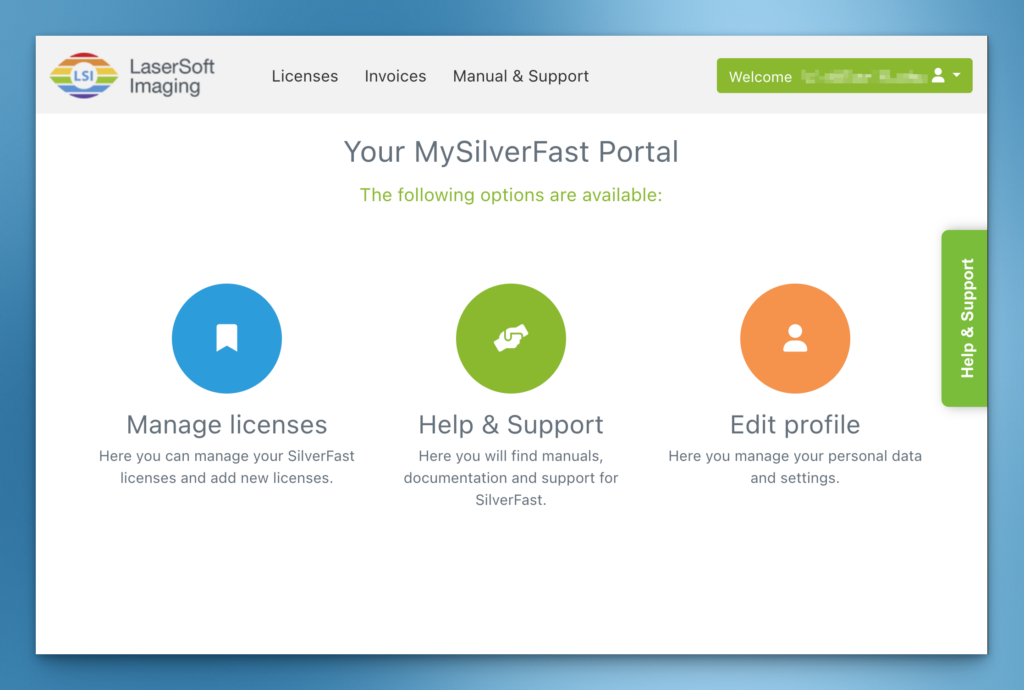
This guide will walk you through setting up your account, activating your software, and managing your licenses on multiple computers.
How Did You Obtain SilverFast 9? #
Depending on how you acquired your software, follow the corresponding steps below to link your license to your MySilverFast account:
Option A: Purchased Directly from the SilverFast Online Shop #
- If you are a new customer: A MySilverFast account was automatically created for you using the email address you used for the purchase. Check your inbox for a confirmation email containing a link to complete your account setup.
- If you are an existing customer: If you logged in before purchasing, your new license has already been automatically added to your existing MySilverFast account.
- Note: Always use the exact same email address for your purchases and your MySilverFast account to ensure your licenses sync correctly.
Option B: Bundled with Your New Scanner (SilverFast 9) #
If your scanner came packaged with SilverFast 9, look inside the box for:
- A special registration link that guides you through creating your MySilverFast account.
- An Activation Key. You can redeem this key on my.silverfast.com to generate your official license and add it to your account.
Step-by-Step: Downloading and Activating SilverFast 9 #
Once your MySilverFast account is set up and your license is registered, follow these steps to install and activate the software:
Step 1: Log In and Download #
- Visit my.silverfast.com and log in.
- Click on the Licenses (or Manage Licenses) section.
- Click Download next to your software version to get the latest installer, then install it on your computer.
Step 2: Activate the Software #
- Open the SilverFast 9 application.
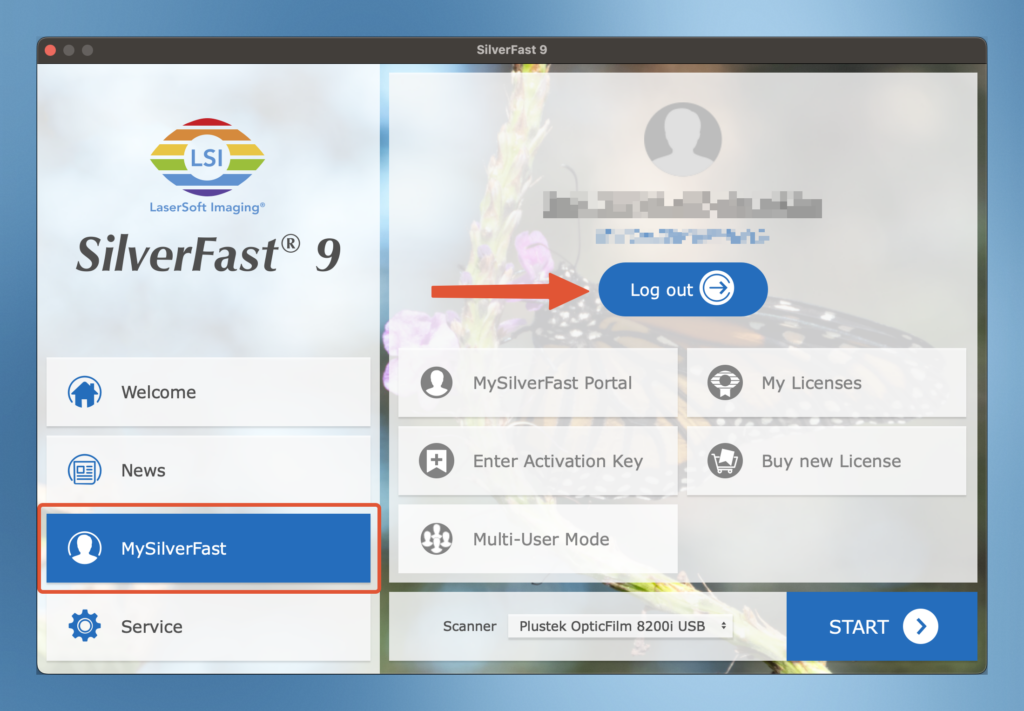
- The welcome screen will automatically navigate to the MySilverFast tab.
- Enter the email address and password associated with your MySilverFast account.
- Click log in. With an active internet connection, SilverFast will automatically detect your registered scanner and activate the full software.
Troubleshooting: “Why does my software still show as a Demo?” #
If you purchased a full license but SilverFast 9 continues to open in Demo mode, the most common cause is an email address mismatch.
If you used one email address to purchase the software (e.g., via PayPal or a guest checkout) and a different email address to log into the SilverFast app, the software will not find your license.
How to fix it: #
- Open SilverFast 9 and go to the MySilverFast tab in the Welcome Screen.
- Click Sign Out (or Log Out).
- Sign back in using the exact email address listed on your purchase invoice or order confirmation.
License Rules, Offline Usage, and Multiple Computers #
Using SilverFast on Multiple Computers #
- 3-System Limit: You can log in and activate SilverFast 9 on up to three (3) different computers using a single MySilverFast account.
- Exceeding the Limit: If you need to move the software to a fourth computer, you must first log out of SilverFast on one of your active computers, or manually deactivate that system’s license online by logging into your account portal at my.silverfast.com.
- No Individual Registration: You do not need to register each computer’s software installation individually; logging in inside the app handles everything.
Offline Usage (Up to 90 Days) #
An active internet connection is required for initial activation. Once activated, you can use SilverFast completely offline for up to 90 days.
To reset this 90-day timer, simply open SilverFast while your computer is connected to the internet. The software will quietly check in with your MySilverFast account in the background and automatically grant you another 90 days of offline use.


