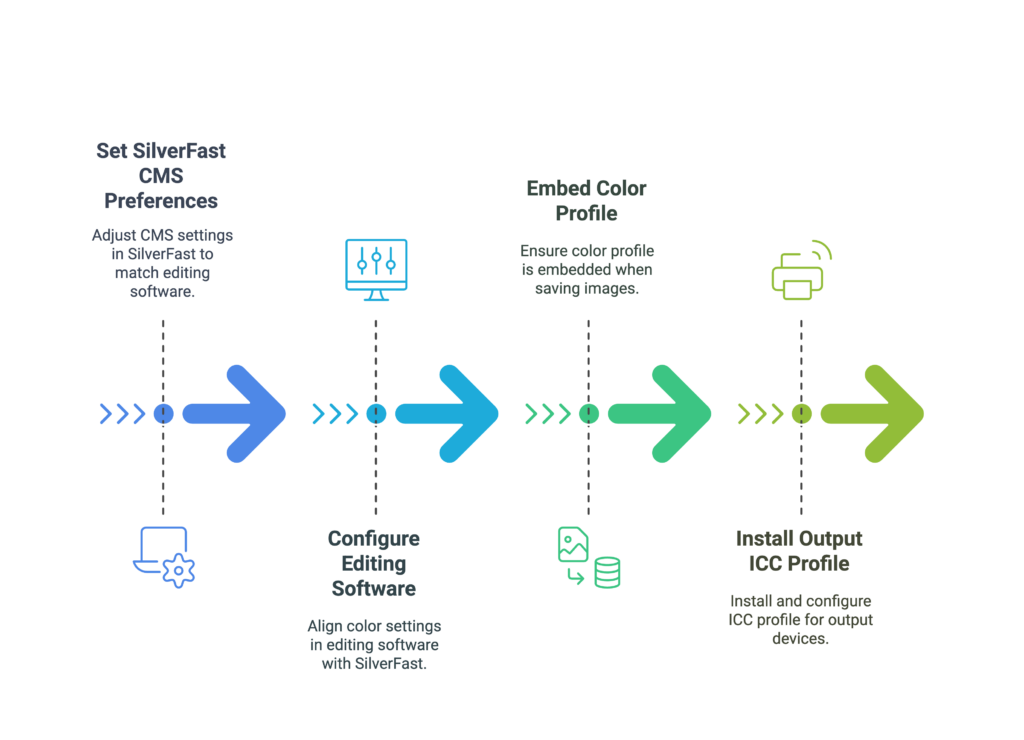
If you are experiencing color discrepancies between your scanned images in SilverFast and how they appear in your editing software, it is likely due to a mismatch in color profiles.
Follow this step-by-step guide to configure a consistent Color Management System (CMS) workflow.
Step 1: Set Your Working Color Space in SilverFast #
To ensure SilverFast outputs colors accurately, you must align its internal color space with your editing software:
- Open SilverFast and go to Preferences.
- Select the CMS (Color Management System) tab.
- Locate the Internal (working space) setting and set it to match your preferred editing color space.
- Example: If you use Adobe Photoshop, we highly recommend setting the Internal/Working space to Adobe RGB (1998).
Step 2: Match the Color Settings in Your Editing Software #
Next, configure your third-party photo editor to recognize the exact same color space:
- Open your image editing software (e.g., Photoshop, Lightroom, Affinity Photo).
- Navigate to the Color Settings or Preferences menu.
- Ensure the working space matches the profile you selected in SilverFast (such as Adobe RGB (1998) or sRGB).
Step 3: Always Embed the Color Profile When Saving #
When you are finished editing your images, saving them correctly is crucial for maintaining color consistency across different screens, web browsers, and devices:
- In your editing software’s “Save” or “Export” dialog, always check the box to Embed Color Profile (e.g., Embed Color Profile: Adobe RGB (1998)).
Step 4: Configure ICC Profiles for Printing (If Applicable) #
If you are preparing your images for a specific output device, such as a home printer or a professional print lab:
- Ensure the specific ICC profile for your printer and paper type is installed on your computer.
- Configure this profile correctly in both SilverFast (under CMS output settings) and your third-party editing software’s print dialog.
Please try these steps and let us know if the color discrepancy issue is resolved. If you still encounter any difficulties, please don’t hesitate to reach out to us. We are committed to helping you achieve the best results with SilverFast.
Color Management Setup for Photo Editing
#