
As Apple has transitioned away from physical FireWire ports, connecting classic Nikon SuperCoolScan scanners to modern Macs has become a common challenge.
This guide explains how to successfully connect FireWire-based scanners—such as the CoolScan IV ED (LS-4000), CoolScan 8000 (LS-8000), and CoolScan 9000 (LS-9000)—to modern Mac computers.
⚠️ Operating System Compatibility Note: This hardware workaround is verified to work on modern macOS versions up to macOS 15. Please note that native FireWire core support is expected to be completely removed in future operating system versions (such as macOS 26 / “Tahoe”).
The Solution: The Adapter Chain #
To bridge the gap between the scanner’s FireWire 400 port and your Mac’s USB-C (Thunderbolt) port, you will need to chain a few specific adapters together.
Below is the exact adapter sequence used and verified in the LaserSoft Imaging testing center:
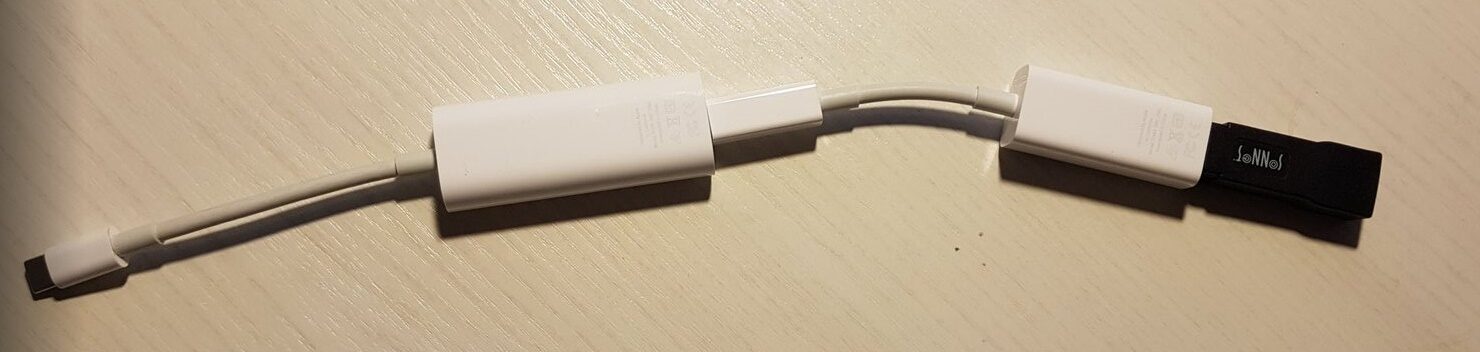
Step 1: Convert FireWire 400 to FireWire 800 #
Start at the scanner end. Use a simple converter plug or cable to adapt the scanner’s FireWire 400 connection to a FireWire 800 connection.
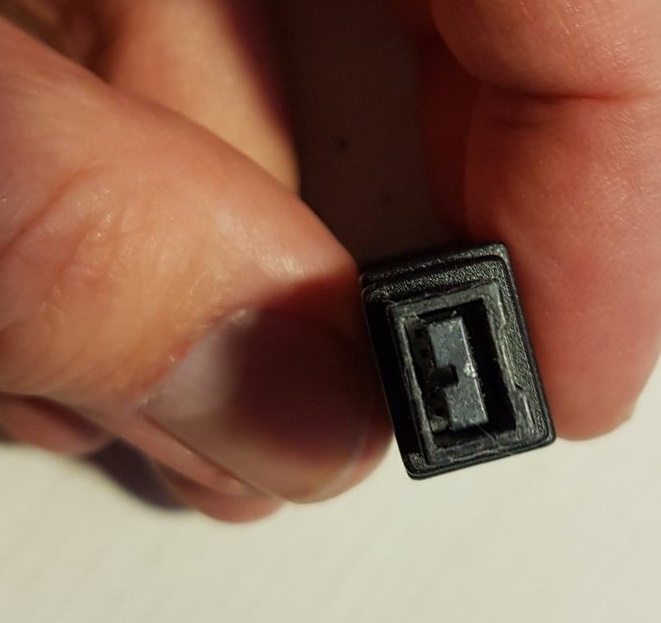
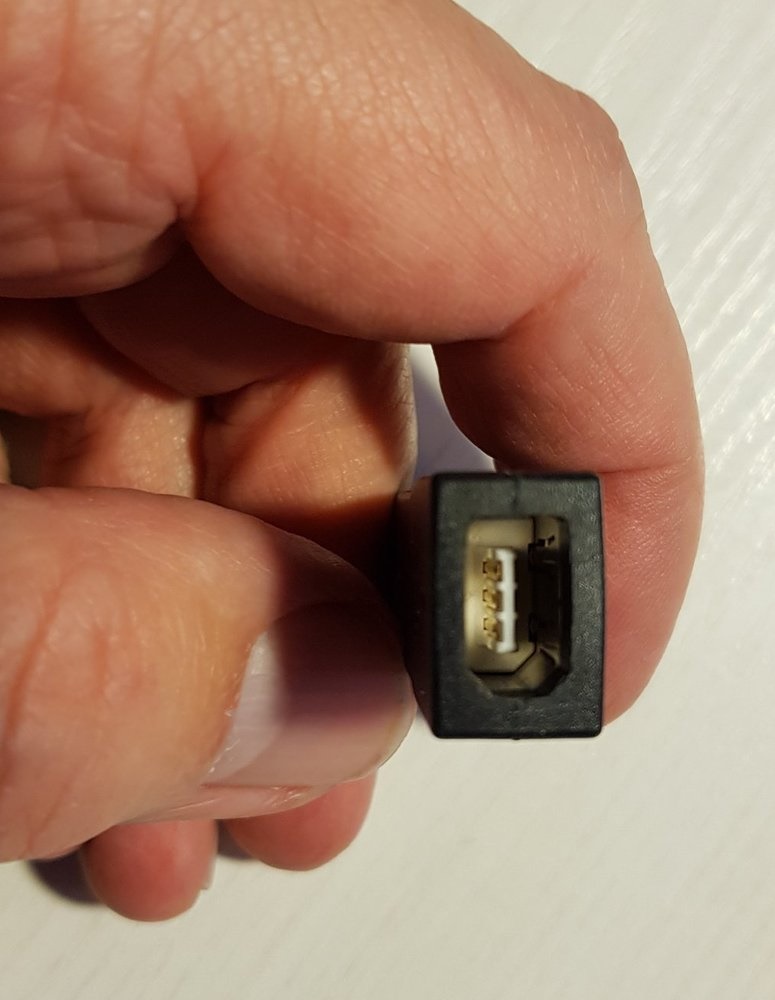
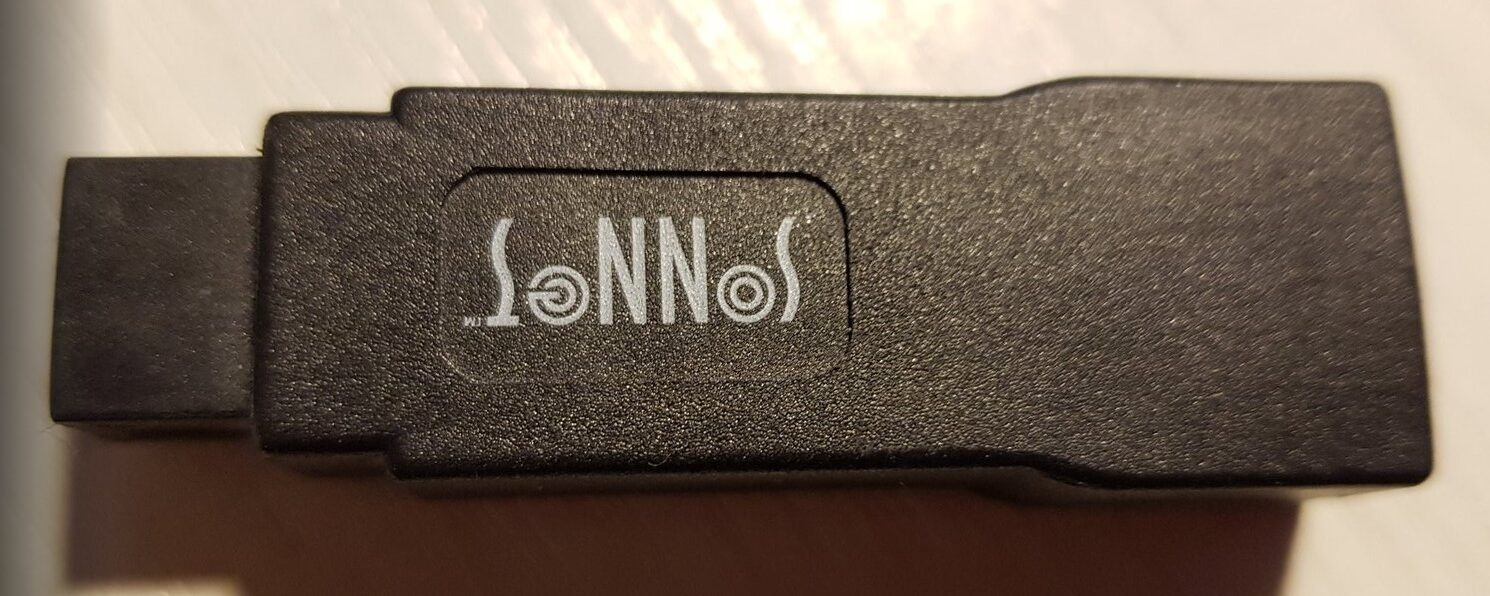
Step 2: Adapt FireWire 800 to Thunderbolt 1/2 #
Plug your FireWire 800 connection into the Apple Thunderbolt to FireWire Adapter (Model A1463).
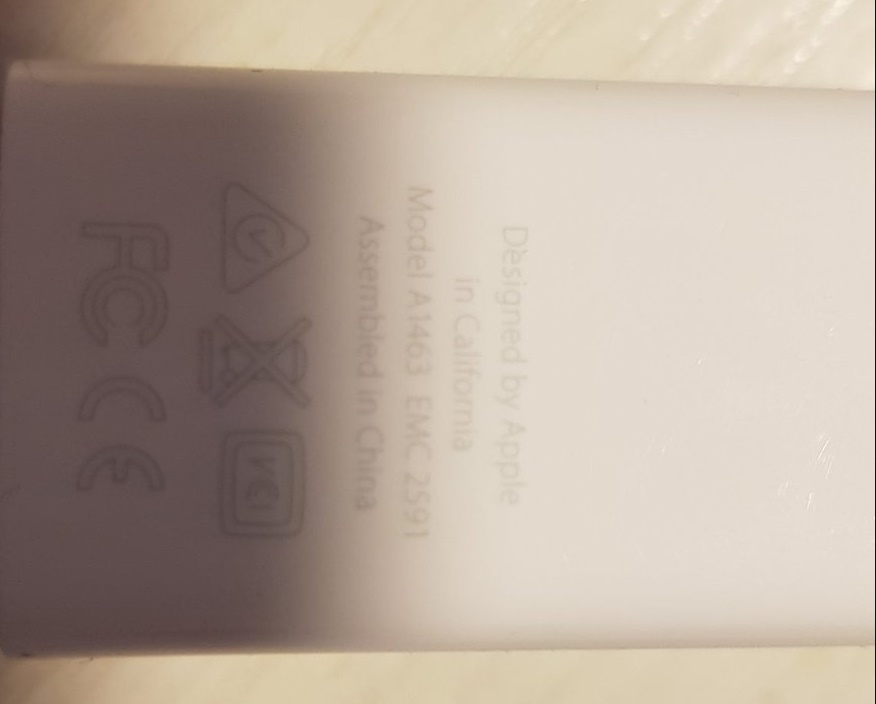
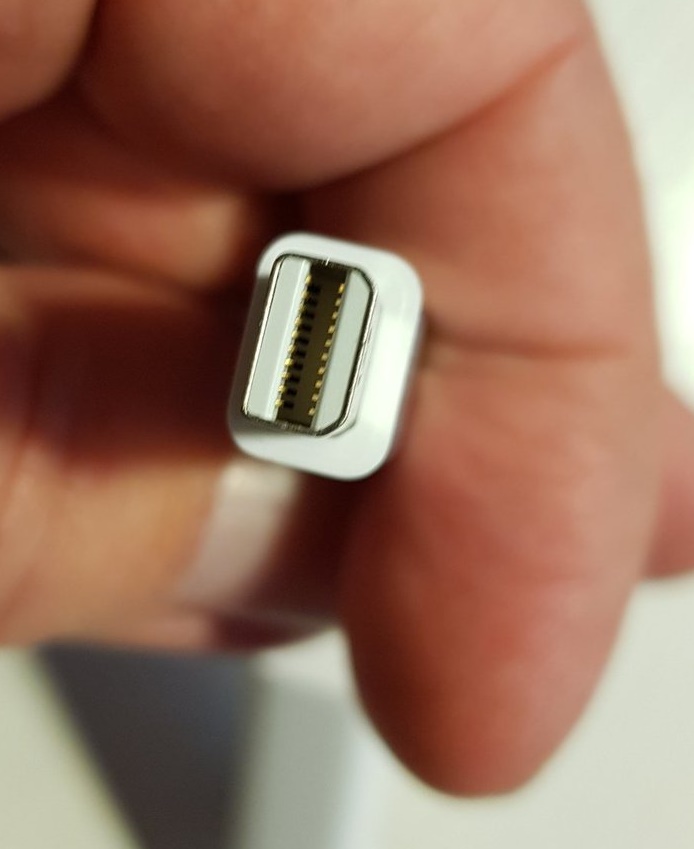
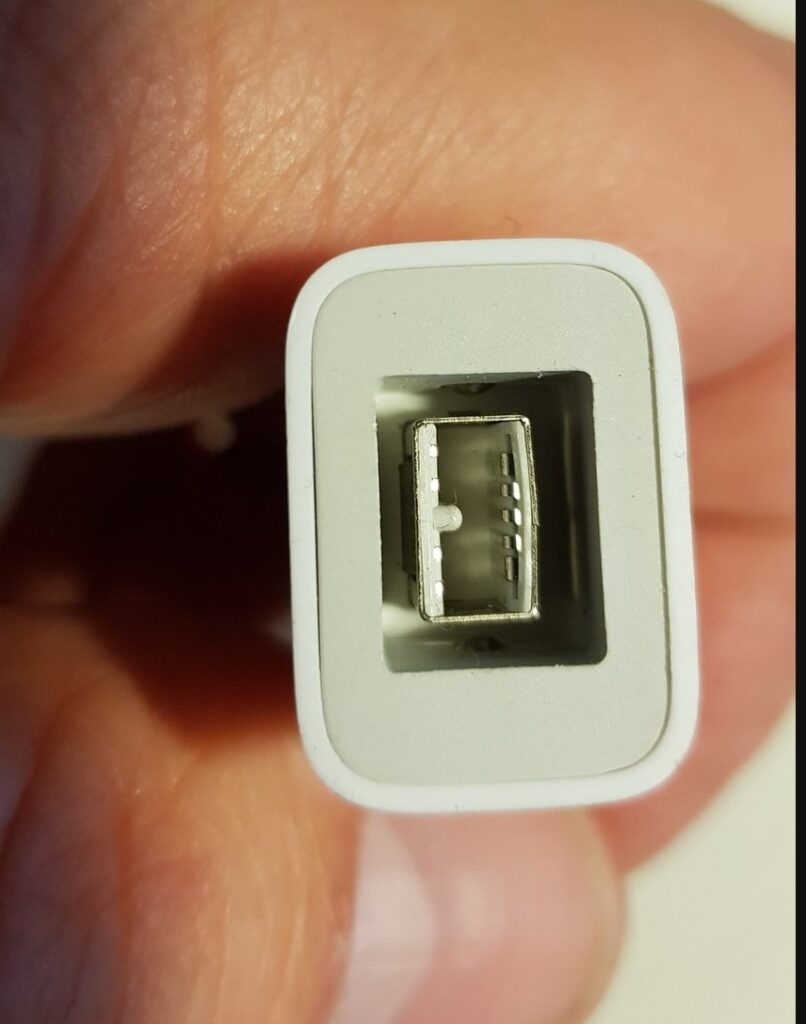
Connecting the FireWire 800 end to the Apple A1463 Thunderbolt adapter.
Step 3: Adapt Thunderbolt 2 to USB-C (Thunderbolt 3/4) #
Finally, plug the A1463 adapter into the Apple Thunderbolt 3 (USB-C) to Thunderbolt 2 Adapter (Model A1790). This allows you to plug directly into a modern USB-C port on your Mac.
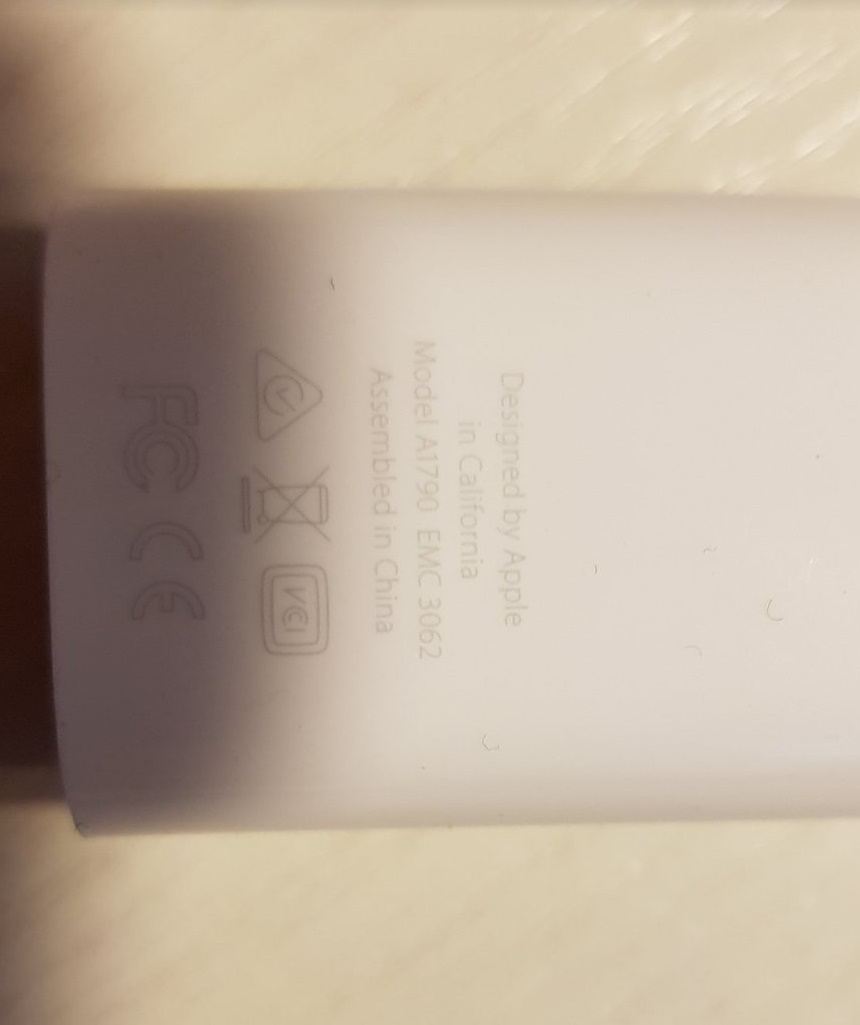
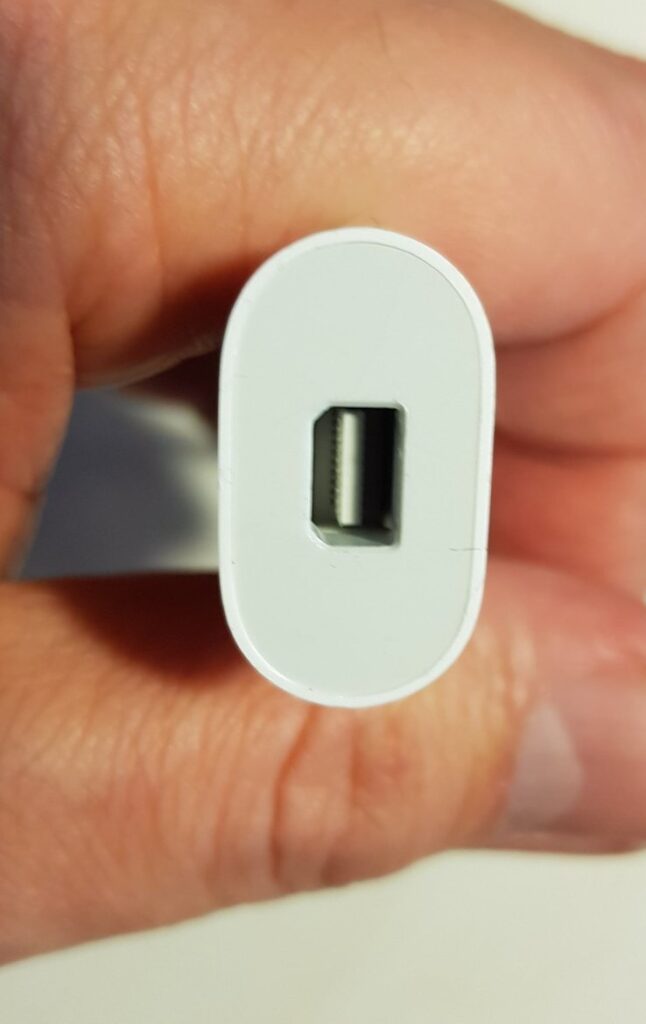
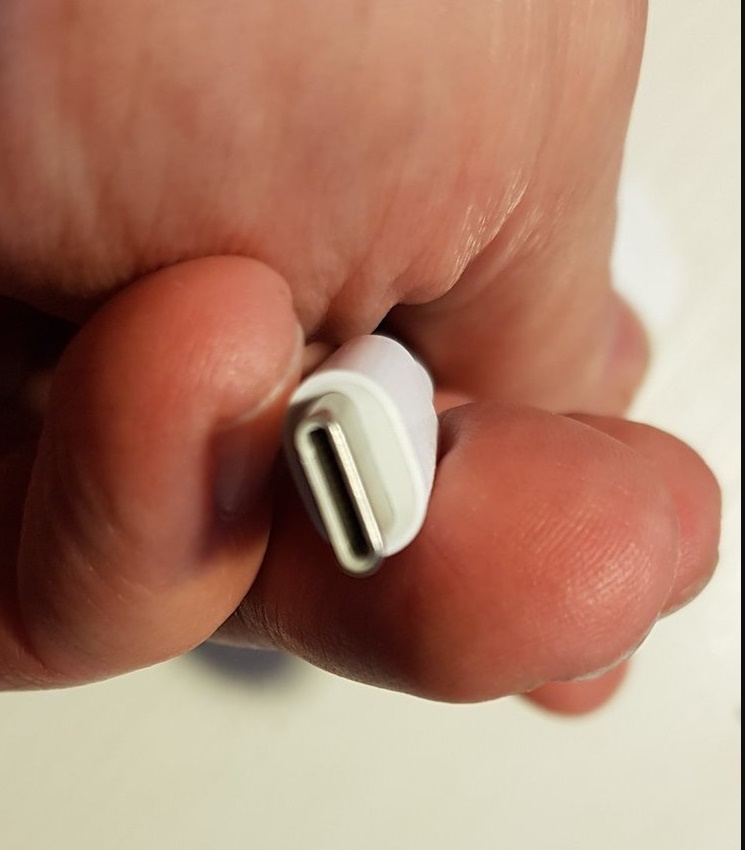
Plugs directly into the USB-C / Thunderbolt port on your Mac.
How to Verify the Connection on Your Mac #
Before launching SilverFast, you must confirm that your Mac’s operating system physically detects the scanner. If macOS cannot see the hardware, SilverFast will not be able to launch or recognize the device.
To check the hardware connection:
- Click the Apple Menu () in the top-left corner of your screen.
- Select About This Mac (on newer macOS versions, go to System Settings> General > About).
- Click the System Report… button.
- In the left-hand sidebar of the System Report window, look under the Hardware section and click on FireWire.
If connected correctly, your Nikon scanner should be listed in this section.
Troubleshooting: Scanner Not Detected #
If the LS-4000, LS-8000, or LS-9000 is not listed in the FireWire section of your System Report, SilverFast will not detect the scanner.
If this happens, troubleshoot the hardware chain systematically:
- Check the connections: Ensure every adapter in the chain is firmly plugged in.
- Isolate defective hardware: Any single component in the path—starting from the Mac’s USB-C port, the adapters, the FireWire cable, or even the scanner’s internal mainboard—could be defective. Try swapping out individual cables or adapters if possible.
- Power cycle: Ensure the scanner is turned on and initialized (steady green light) before checking the System Report.


